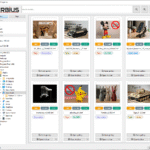
Terbius 3D Explorer V10 AppImage Linux

0,00 €

Category
Description

Newer Linux distributions
For newer Linux distributions.

Having problems?
If this version does not work on your system, please download the other version.

First start Terbius 3D Explorer

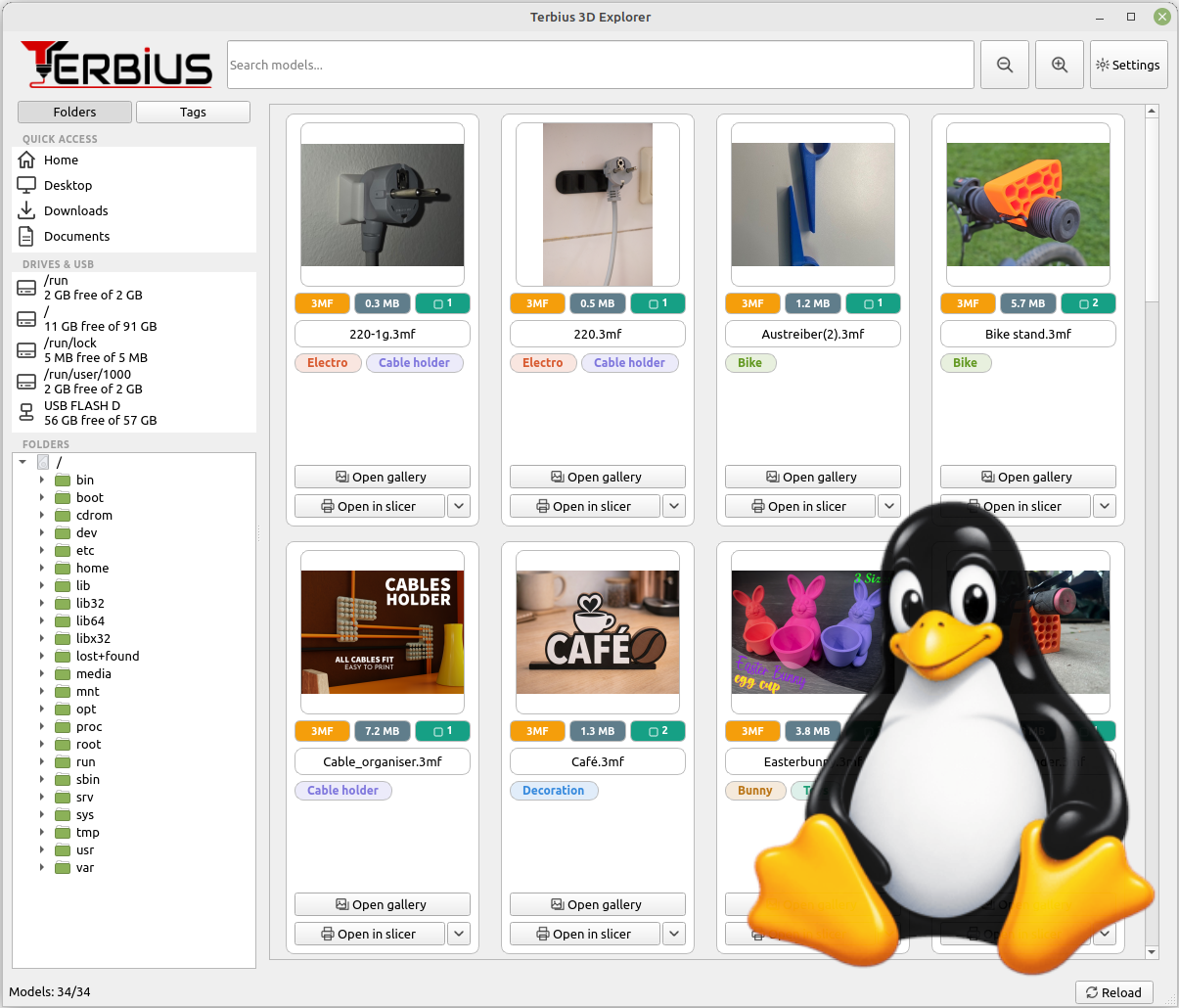
The first launch of the program and the initial loading of a folder may take some time. Please let the program continue running — it is generating thumbnails.

The first time you open the 3D Viewer may also take some time, especially with larger files, as the program calculates the geometry of the 3D object. The geometry will be stored in the program's cache, so subsequent launches will be much faster.

Note: The program creates simplified geometry of the models. The generated model may contain errors.

When you switch to another folder, the program scans the entire folder for new 3D models. You can also use the “Reload” button in the bottom-right corner.


Type

AppImage

BETA TEST

Version intended for testing.


Size

342,8 MB

Version - V10

10.09.2026


Terbius is free.

A slice of pizza would make us happy, though.

Starting the program AppImage

The AppImage file is intended for Linux systems. It is designed to work on a wide range of Linux distributions.

You can run an AppImage easily:

  1. Download the program and place it wherever you want to keep it.
  2. Right-click the file → Properties.
  3. Open the Permissions tab and enable:
    • Allow executing file as a program
    • or Is executable
  4. Close the settings window.
  5. Launch the program by double-clicking the file.

Note: Some desktop environments (for example KDE Plasma, GNOME, or file managers in some distributions) may have program execution via double-click disabled for security reasons. In that case, you need to enable program launching in the file manager settings.

If an error occurs after startup :


 AppImages require FUSE to run
 

Ubuntu, Linux Mint, Debian

Open a terminal and run :

sudo apt install libfuse2

Fedora

Open a terminal and run :

sudo dnf install fuse-libs fuse fuse-devel

Adding a slicer to Terbius 3D


Terbius 3D Explorer allows you to open a model directly in the slicer you use. In the settings, you can add the programs/slicers that you use.

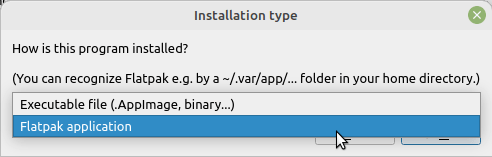
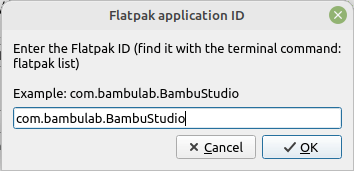
If the slicer was installed via Flatpak, you must add the slicer as a “Flatpak application” and enter its exact ID.

You can find the slicer’s ID in the terminal using the following command example :


flatpak list | grep -i bambu
flatpak list | grep -i prusa
flatpak list | grep -i cura
Open Terbius 3D Explorer --> Settings --> Printers (slicer software) --> Add
Beta Version – Important Notice

Beta Version – Important Notice

Please note that this is a beta test version and may contain bugs.

We have identified an issue with renaming files: a file must not be renamed to a filename that has already been used previously in the program.

Until this issue is fixed, we strongly recommend not using the file renaming function.

Thank you for your understanding and for helping us improve the program.